- Call us 01444 237070

-
- Back
- Used Cameras
- Used Accessories
- Used Lenses
- Back
- Used Canon Lenses
- Used Nikon Lenses
- Used Fujifilm Lenses
- Used Sony Lenses
- Used Micro 4/3rds Lenses
- Used Leica Lenses
- Used Panasonic Lenses
- Used Pentax Lenses
- Used Samyang Lenses
- Used Sigma Lenses
- Used Tamron Lenses
- Used Tokina Lenses
- Used Voigtlander Lenses
- Used Zeiss Lenses
- Used Hasselblad Lenses
- Used Video
- Used Film Equipment
- Used Stock Alert
- Used Blank Test
- Sell or Part Exchange
- Used Clearance
- Recently Added Used Equipment
- Park Picks
- Faulty
- Trade-In
- Blog
- New in
- Call us
- Contact us
- Stores
- Sign in
- Categories
- Tips & Inspiration
- Reviews
- News
- Events
- Features
- Buying Guides
- Competitions
Is Your Camera More Accurate Than Your Screen
A common challenge for many photographers, filmmakers and designers is achieving consistent, accurate colour throughout their workflow. Many of us can spend thousands of pounds on cameras and lenses, then completely forget about the display we use to edit, share and print our work from.
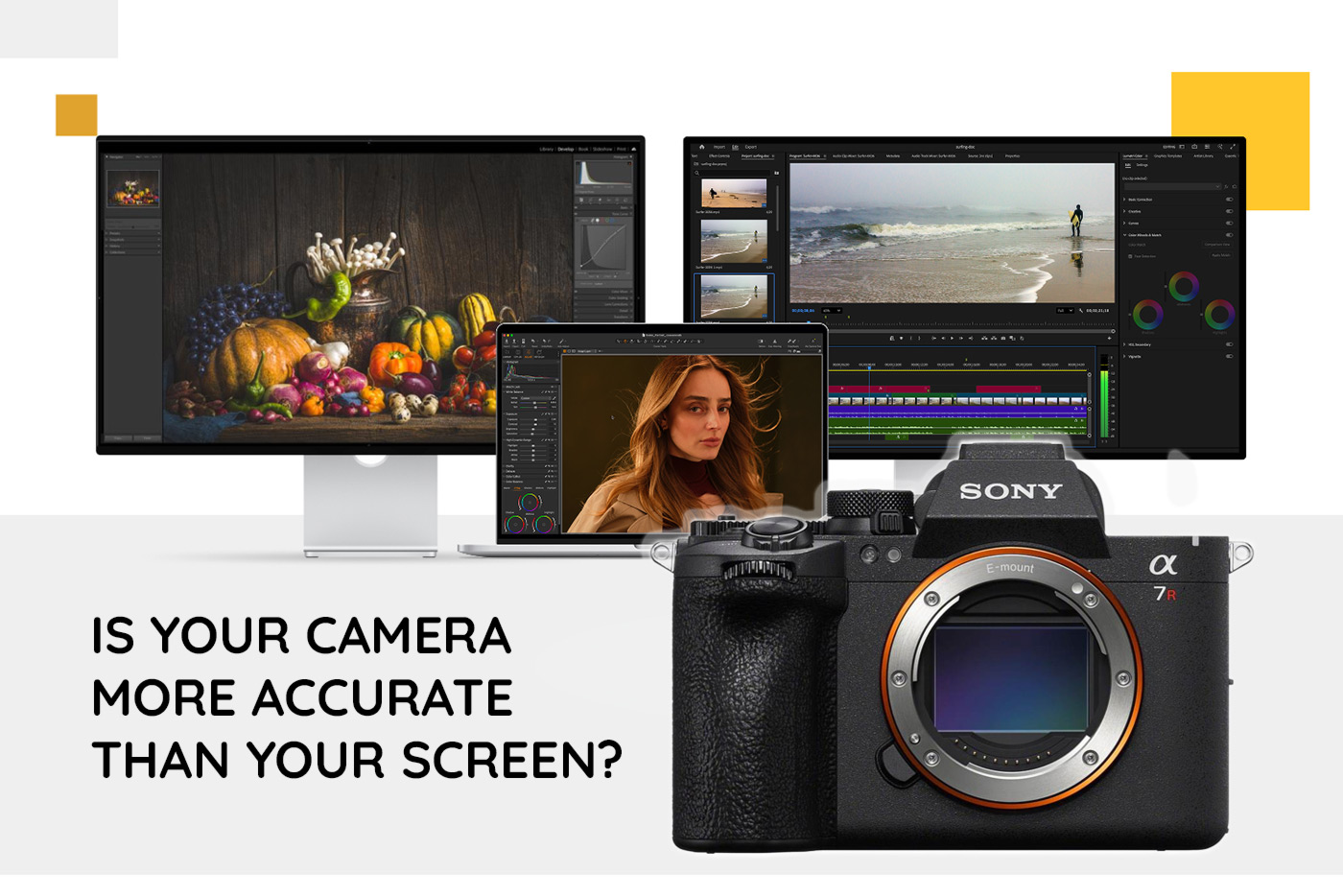
I learned this the hard way with a batch of large format prints, wasting expensive ink and paper more than once because my screen was showing me something quite different from the printer. It’s also why clients often ask for specific colour ICC profiles to be assigned for soft proofing prior to print. Is your camera more accurate than your screen, and what can you do about it? That’s what we’ll explore here thanks to a new calibration device from Calibrite.
Colour calibration is the process of measuring and adjusting a display so that the colours closely match an established standard, rather than whatever the screen happens to produce out of the box. Most photographers are familiar with white balance, colour science and RAW editing, but not as many check whether a monitor is still displaying colours accurately. I’d say this is especially true among Mac users, whose displays arrive factory calibrated and are often left that way indefinitely… And I say that as a Mac user myself.
The fact is that all displays change over time. Backlights age, colour temperature may shift and panel performance does evolve. Ambient lighting also affects how we perceive both colour and brightness. This can lead to differences between what the camera captured and what’s showing on a screen, which is very important for printing, client delivery or HDR output.
That’s why we’ve created this guide for photographers, retouchers and content creators who depend on accurate colour. Join us as we look at how monitor calibration works, Apple’s built-in calibration system, and why the recent approval of the Calibrite Display Plus HL is especially big news for Mac users who want accurate, consistent colour.
Who might want to calibrate a screen?
Having accurate colour is helpful for photographers who need prints that better match the original image and their screen, video editors and colourists working between HDR and SDR reference standards, and designers needing brand colour consistency. It’s even relevant for shared workspaces where multiple people use one display.
Have You Heard Of Apple’s Built-In Display Calibration System?
Most photographers probably haven’t. Apple introduced hardware-level display calibration with the Pro Display XDR back in 2019, with proper field calibration support following around a year later. However, for most of us, it’s stayed well under the radar.
Part of the reason is that it was originally made for professional post-production teams, where colour accuracy is critical and the equipment required to actually use it generally costs thousands of pounds. The original system called for a spectroradiometer rather than a standard colorimeter, putting it well out of reach for most working photographers.
By using Apple’s calibration workflow, supported displays can be adjusted at the hardware level rather than through an ICC profile, which is software-based. The difference may be small, but it is beneficial for the use cases mentioned earlier, such as professional video, photo and design work.
A Pro Display Calibrator feature is available for selected Mac screens, including:
- Pro Display XDR
- Studio Display XDR
- Studio Display
- 14-inch MacBook Pro (2021 or later)
- 16-inch MacBook Pro (2021 or later)
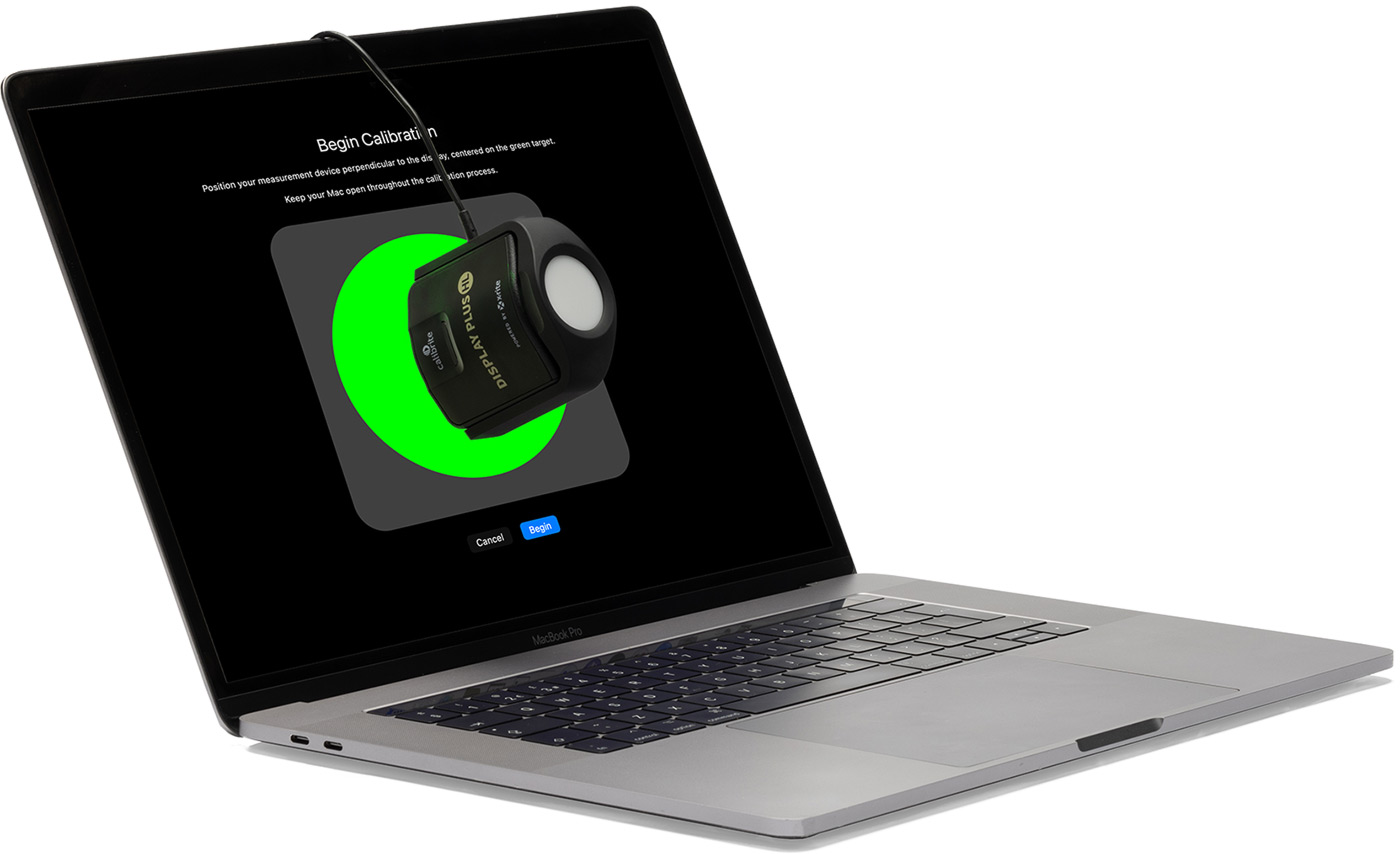
Is Hardware Calibration Better Than An ICC Profile?
Most monitor and laptop screens only support software calibration via ICC profiling and a good ICC monitor profile can get you pretty close to the target. On the other hand, brands such as EIZO, BenQ and NEC have supported LUT-based hardware calibration on premium screens for years giving much better results.
Hardware calibration alters a monitor’s internal 3D Look-Up Table, or LUT, which many creators will already be familiar with from importing LUTs into a camera or editing software. An ICC profile, on the other hand, is a software file that describes a display’s behaviour to the operating system. The graphics card then adjusts screen output to match that profile.
The advantage of hardware calibration is that adjustments are made directly at the display level rather than relying solely on software correction. This can help maintain tonal transitions and consistency across different workflows, particularly for professional photo, video and design work.
For the most accurate results, hardware calibration and ICC profiles often work together. Apple’s built-in system uses hardware-level adjustments, which is why the approval of the Calibrite Display Plus HL is significant. Rather than simply creating another profile, it allows supported Apple displays to be calibrated directly through Apple’s own workflow.
Do you need to calibrate an Apple Monitor?
Apple displays typically look fantastic, especially compared to other brands when working in a multi-screen environment. This is because these displays are among the best factory-calibrated available, but some workflows still benefit from calibration and validation, especially as displays begin to age.
Until now, there’s not been an Apple-approved device that costs less than a small car, with production houses using something like the Colorimetry Research CR-300 spectroradiometer, which costs around £12.5K.
Enter the Display Plus HL, which is priced at under £300.00, yet certified by Apple as being compatible with Pro Display Calibrator. Finally, us Mac users can calibrate our screens accurately with a device approved by Apple that is affordably priced. The Display Plus HL can still perform traditional profiling through Calibrite PROFILER on Windows and macOS, just like other calibration devices. However, as of June 2026 on supported displays running macOS Tahoe 26.4 or later, it can also be used with the hardware workflow. Additionally, no software or drivers are needed, as the Plus HL device is supported natively by macOS.
Another barrier that has come down is the process itself, which Apple outlines in the article about how to use full calibration in the Pro display calibrator. It turns out it’s quite straightforward.
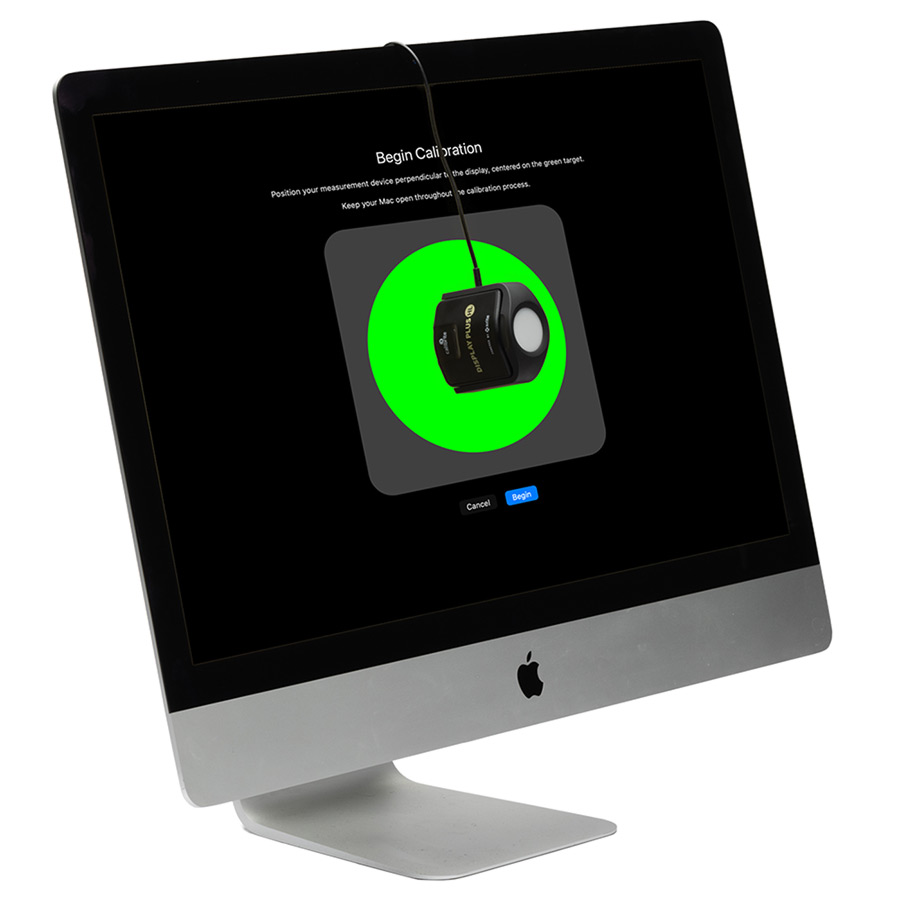
How to calibrate with the Display Plus HL
A full session takes around two hours, with a warning not to log out, switch users, change resolution, mirror displays, or let the Mac sleep during that time, or the calibration will fail. Loosely, the process includes:
- Open System Settings → Displays. Click Preset and choose the profile for your work, whether photography, design and print, or video.
- In the Apple Pro Display Calibrator, pick ‘Full Calibration’. This step requires a 30-minute warm-up in a dim or dark room before measurement begins.
- After confirming the device, place the Display Plus HL against your screen. The system reads the display and writes adjustments directly to it. That’s it.
It’s also possible to customise calibration, which is a quicker alternative to full calibration, measuring and adjusting white point and luminance values only.
There’s more good news for anyone working across different colour spaces too. According to Calibrite, calibration updates all Reference Modes simultaneously, helping maintain consistency across different colour spaces and brightness ranges. This is a huge time-saver if you work with photo and video, or output between SDR and HDR, for example, where you want accuracy to flow throughout a project.
Which Apple Displays are Supported by the Display Plus HL?
The Pro Display Calibrator feature is available for Apple Pro Display XDR, Studio Display XDR, Studio Display, and the 14-inch or 16-inch MacBook Pro (2021 or later). Calibrite describes the same MacBook Pro compatibility as an M1 Pro/Max and later, so if you're checking your own machine, anything from the 2021 MacBook Pro onward should qualify.
Do Most Photographers Need This Level of Accuracy?
Probably not, no. However, if you’re a working professional in some fields, it could be critical to maintain accurate colour. This may be relevant for:
- Wedding photographers may well benefit.
- Portrait and lifestyle photographers who also supply client prints and books.
- Fine art and landscape photographers who print or exhibit.
- Commercial photographers whose work is used in print.
- Retouchers and colourists will definitely need accurate colour.
- Any video editor delivering HDR, where calibration is very valuable.
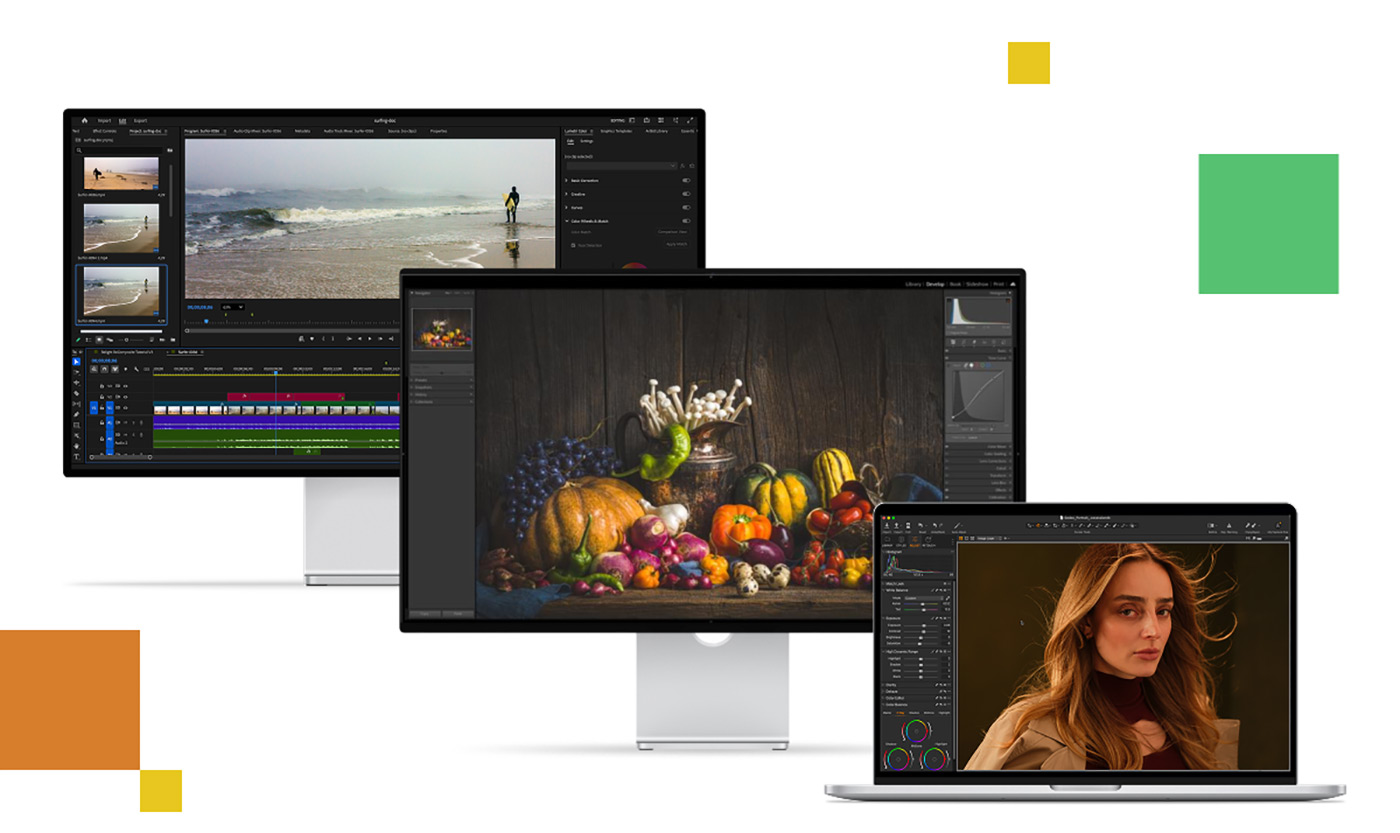
What Happens If You Never Calibrate your screens?
Depending on your field, a number of things can go wrong due to an inaccurate monitor. Issues include:
- Prints that look bright and vibrant on a screen may turn out muddy, dark or have unexpected colour casts.
- An image edited to look perfect on your monitor might appear completely different when viewed on a client’s screen.
- Video footage may be graded incorrectly, resulting in luminance, saturation or colour issues that only become apparent when viewed elsewhere.
- Brand colours can drift, which is particularly important for commercial design work.
These and other issues cost time and money through reprints, re-edits and, in some cases, even re-shoots.
While not every photographer needs hardware-level display calibration, anyone producing professional prints, client work or HDR content stands to benefit from genuine colour accuracy. Apple's system has existed for years, yet remained largely inaccessible due to the cost of approved hardware, until now.
The arrival of the Calibrite Display Plus HL changes that. By bringing Apple-approved calibration within reach of individual photographers rather than just production studios, it closes a gap that's existed since the Pro Display Calibrator launched. I've lost count of the prints I ruined trusting a poorly calibrated screen, and that's the mistake this device intends to prevent.
Explore the Calibrite Display Plus HL in more detail and know that you can achieve accurate colour with a Mac, PC and Windows.
Frequently Asked Questions
Do I need to calibrate my Apple display if it was factory calibrated?
Yes, eventually. Factory calibration reflects how accurate your display was when it left Apple’s production line. Backlights age, colour temperature shifts and panel performance can gradually change over time, so even the best factory-calibrated screen will drift. Most photographers, filmmakers and designers should expect to recalibrate periodically rather than relying on factory settings indefinitely.
Is hardware calibration better than an ICC profile?
They serve different purposes rather than one replacing the other. An ICC profile is a software file that tells the operating system and colour-managed applications how a display behaves. Hardware calibration adjusts the display’s internal Look-Up Table directly, correcting colour at the source rather than relying solely on software correction. For the most accurate results, the two are often used together.
What is the cheapest Apple-approved way to calibrate a Mac display?
Before the Calibrite Display Plus HL, Apple approved devices were industrial spectroradiometers costing several thousand pounds, with some professional options costing more than £12,000. It is the first Apple-approved colorimeter priced at under £300, making Apple’s hardware calibration workflow accessible to individual photographers and small studios for the first time.
Which Mac displays support Apple’s hardware calibration system?
Apple’s Pro Display Calibrator currently supports the Apple Pro Display XDR, Apple Studio Display, and supported MacBook Pro models with Liquid Retina XDR displays. Always check Apple’s latest compatibility information, as supported models may change with future macOS releases.
What happens if I never calibrate my screen?
An uncalibrated display can gradually drift away from accuracy over months or years. This may result in prints that appear darker or differently coloured than expected, edits that look inconsistent on a client’s device, and colour grading decisions that don’t translate accurately to other screens. These issues often go unnoticed until a print run or client delivery exposes them, at which point the cost may be reprints, re-edits or additional production time.
How often should I calibrate my monitor?
There is no single rule, but many professionals recalibrate every one to three months depending on how critical colour accuracy is to their work. Displays used for professional print production, commercial photography or HDR video are often checked more frequently than general-purpose editing screens. In colour-critical environments, some professionals may validate or recalibrate displays every few weeks, while others are comfortable working to a longer schedule.
Can I use the Display Plus HL with Windows?
Yes. The Display Plus HL works with both Windows and macOS through Calibrite PROFILER software for traditional display calibration and profiling. Apple approval adds compatibility with Apple’s hardware workflow on supported Mac displays, but the device is not limited to Apple systems.
Share this post:
By Nick Dautlich on 25/06/2026

Nick Dautlich
Senior Content Writer and Product Reviewer
Nick Dautlich is the Senior Content Writer and Product Reviewer at Park Cameras, with over 15 years of photography experience. A Sony Imaging Professional and expert reviewer, Nick has worked with major brands such as Canon, Sony and Nikon. His work is also featured on Vanguard World UK’s website, Capture Landscapes, and Shutter Evolve. Nick’s photography includes National Trust projects and magazine covers and he is passionate about landscapes and storytelling. Nick also enjoys hiking and teaching his children about nature. Learn more on his profile page.
Trade in your old equipment
Fast and easy trade in service ensures your old gear is collected efficiently and you are paid quickly! It's very simple to trade in your unwanted photography gear. Just head over to our dedicated Sell or Part Exchange page, fill out the details, and we'll get back to you with an offer for your old gear. Take the cash, or put it towards the cost of your new gear. It's up to you! Find out more
sign up to the newsletter
Keep up to date on the latest photography news, events and offers. Sign up now