- Call us 01444 237070

-
- Back
- Used Cameras
- Used Accessories
- Used Lenses
- Back
- Used Canon Lenses
- Used Nikon Lenses
- Used Fujifilm Lenses
- Used Sony Lenses
- Used Micro 4/3rds Lenses
- Used Leica Lenses
- Used Panasonic Lenses
- Used Pentax Lenses
- Used Samyang Lenses
- Used Sigma Lenses
- Used Tamron Lenses
- Used Tokina Lenses
- Used Voigtlander Lenses
- Used Zeiss Lenses
- Used Hasselblad Lenses
- Used Video
- Used Film Equipment
- Used Stock Alert
- Used Blank Test
- Sell or Part Exchange
- Used Clearance
- Recently Added Used Equipment
- Park Picks
- Faulty
- Trade-In
- Blog
- New in
- Call us
- Contact us
- Stores
- Sign in
Call us: 01444 237070
Search terms
Brands
Category
Products
[[{name}]]
[[{attributes.Price}]]
- Categories
- Tips & Inspiration
- Reviews
- News
- Events
- Features
- Buying Guides
- Competitions
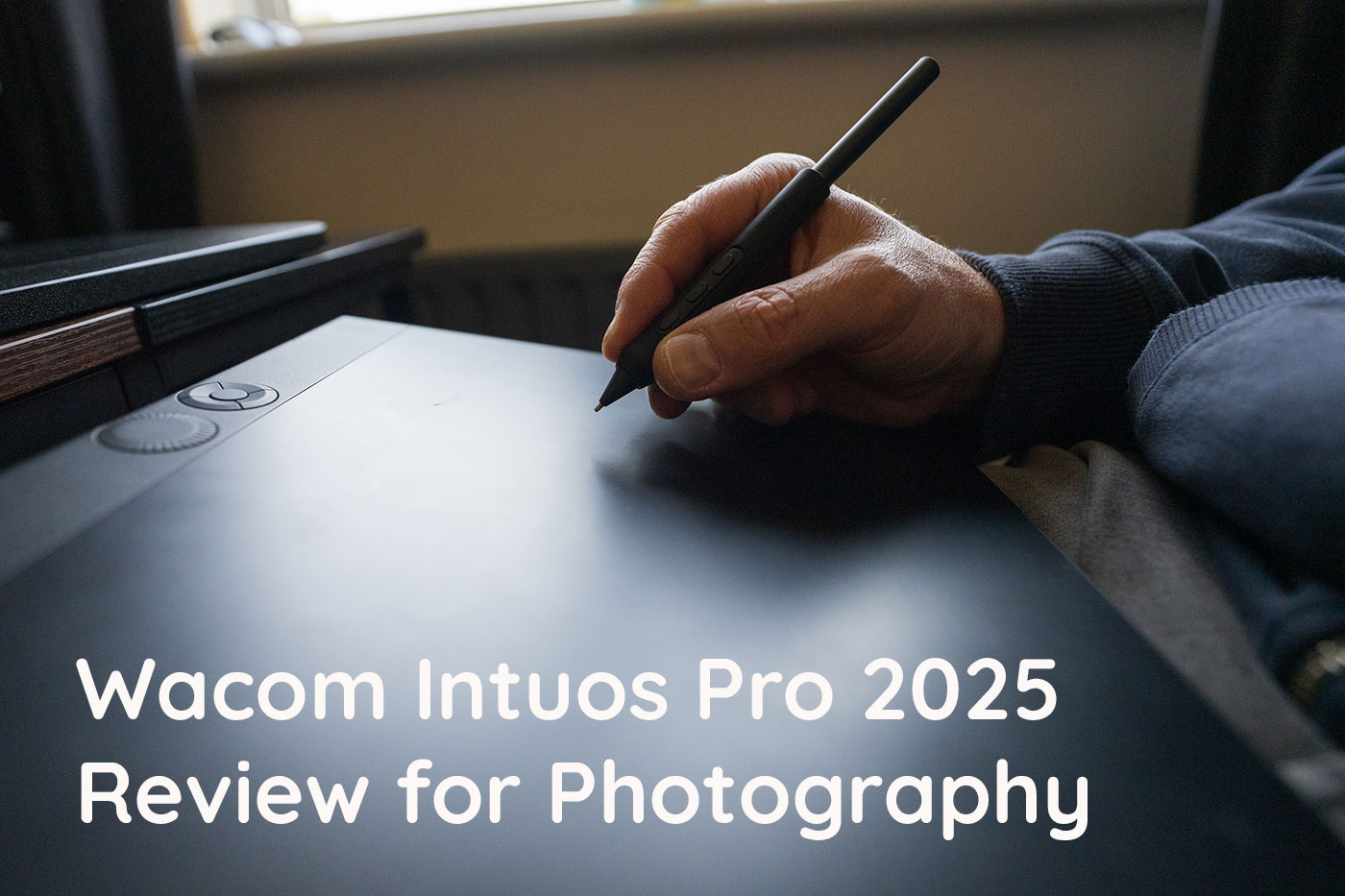
Wacom Intuos Pro 2025 Review for Photography
Despite being a very keen photographer, I'm not especially keen on editing and try to get as much captured correctly in-camera as possible, to avoid long editing sessions. That said, there's no question that if you're involved in photography or video content creation, you are required to process your work to some degree.
That is particularly true for professionals and client-facing photographers, who rely on editing for everything from styling consistency to upscaling or retouching. That got me wondering whether a pen tablet could make editing feel less like a chore for a first time user, and led to this Wacom Intuos Pro 2025 review for photography.
Wacom tablets are known for offering a more natural working experience than a keyboard and mouse, and the popular Wacom Intuos Pro was redesigned in 2025 to provide an even better user experience. Although we released a guide asking which Wacom tablet to choose, it didn't include any hands-on testing of the updated Intuos Pro, which is where this review comes in.
So if you're a photographer, or simply interested in what Wacom has released recently, read on as we put the updated 2025 Intuos Pro large through its paces to see whether pen tablet editing really does feel more natural for photo editing.
What is the Wacom Intuos Pro Pen Tablet Range?
The Wacom Intuos Pro Pen Tablet range consists of screen-less tablets that connect to your computer and includes small, medium, and large models for digital artists, photographers, and professional creators. They feature advanced pen technology, customisable buttons, and multi-touch support, while being compatible with all leading photography software packages, including those from Adobe and Capture One.
The range offers accurate pressure sensitivity, tilt recognition, and customisation to support comfortable drawing and editing. I opted for the large model for this review, and the medium shares much of the same functionality, while the small offers fewer customisable buttons and no multitouch gesture support.
That brings us onto features, which we explore next.
What are key features for photographers?
For photographers, the main appeal of the Intuos tablet is that it can make repetitive and often detailed editing tasks faster and more comfortable. Just as you can get a specialised keyboard with quick keys for audio or video editing, a Wacom tablet provides benefits for photo editing, with quicker access to your most commonly used features.
Some of the benefits for photographers include:
- Greater precision than you can achieve with a mouse
- Natural feeling of using a pen
- Multi-touch gestures to save time (M & L only)
- Quick erasing once a button is customised
In everyday terms, this means quicker editing and retouching, whether you clean up skin, dodge and burn, or regularly repeat steps when editing photos. For day-to-day editing, I regularly adjust basic sliders in Lightroom, such as contrast, vibrance, blacks, and whites, which are easy to implement from the Wacom tablet.
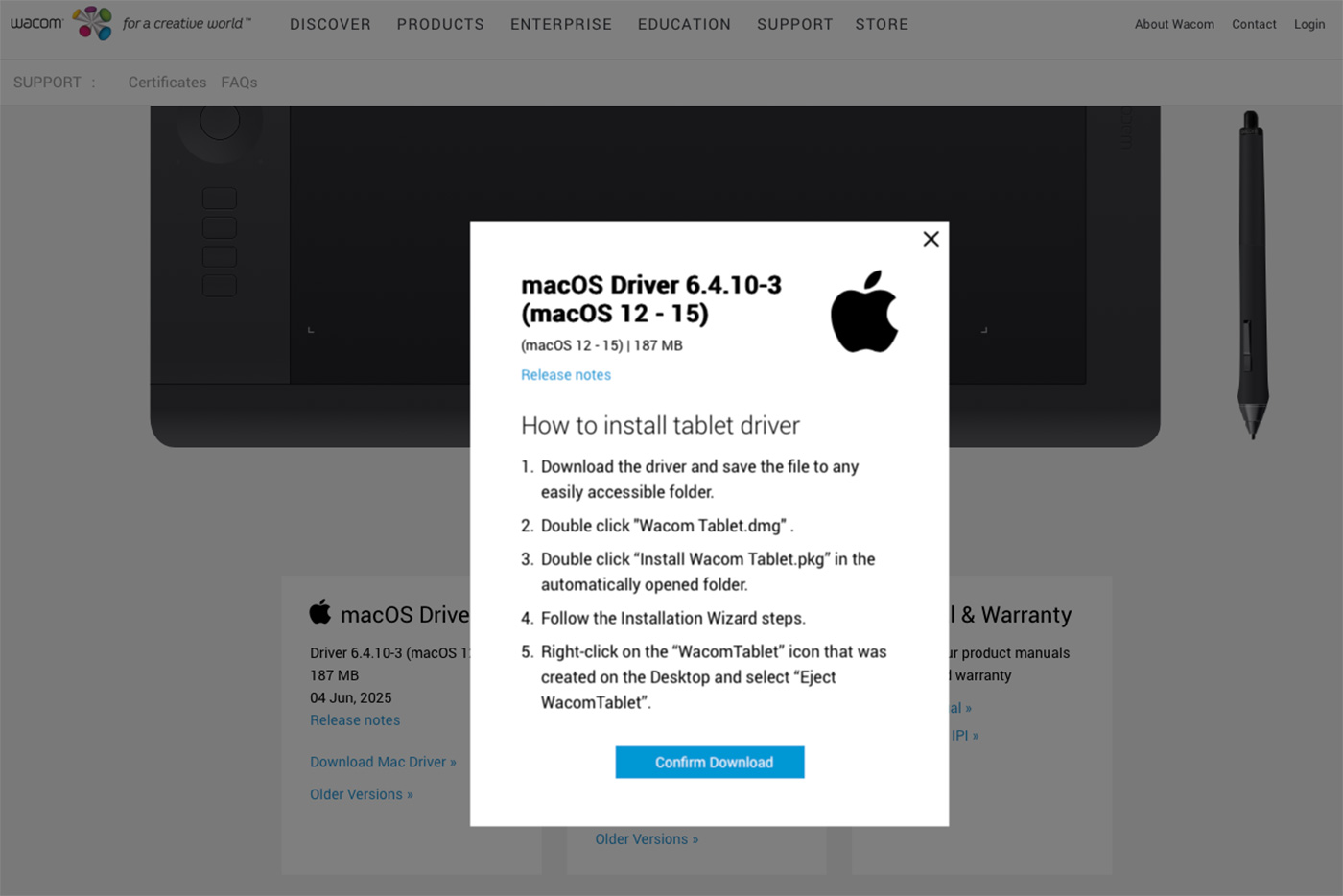
Working on a Mac, it's sometimes easy to forget the entire Windows ecosystem, but the good news is that the tablet is compatible with both operating systems, requiring just some drivers to download for setup, which leads on to ease of use and ergonomics.
Is the Wacom Intuos Pro easy to use?
Having never used a graphics tablet, I was pleasantly surprised at how easy it was to get started, which simply involved installing some drivers. Once installed, you're prompted to customise the tablet or accept the default settings in order to work via a Bluetooth or wired connection.
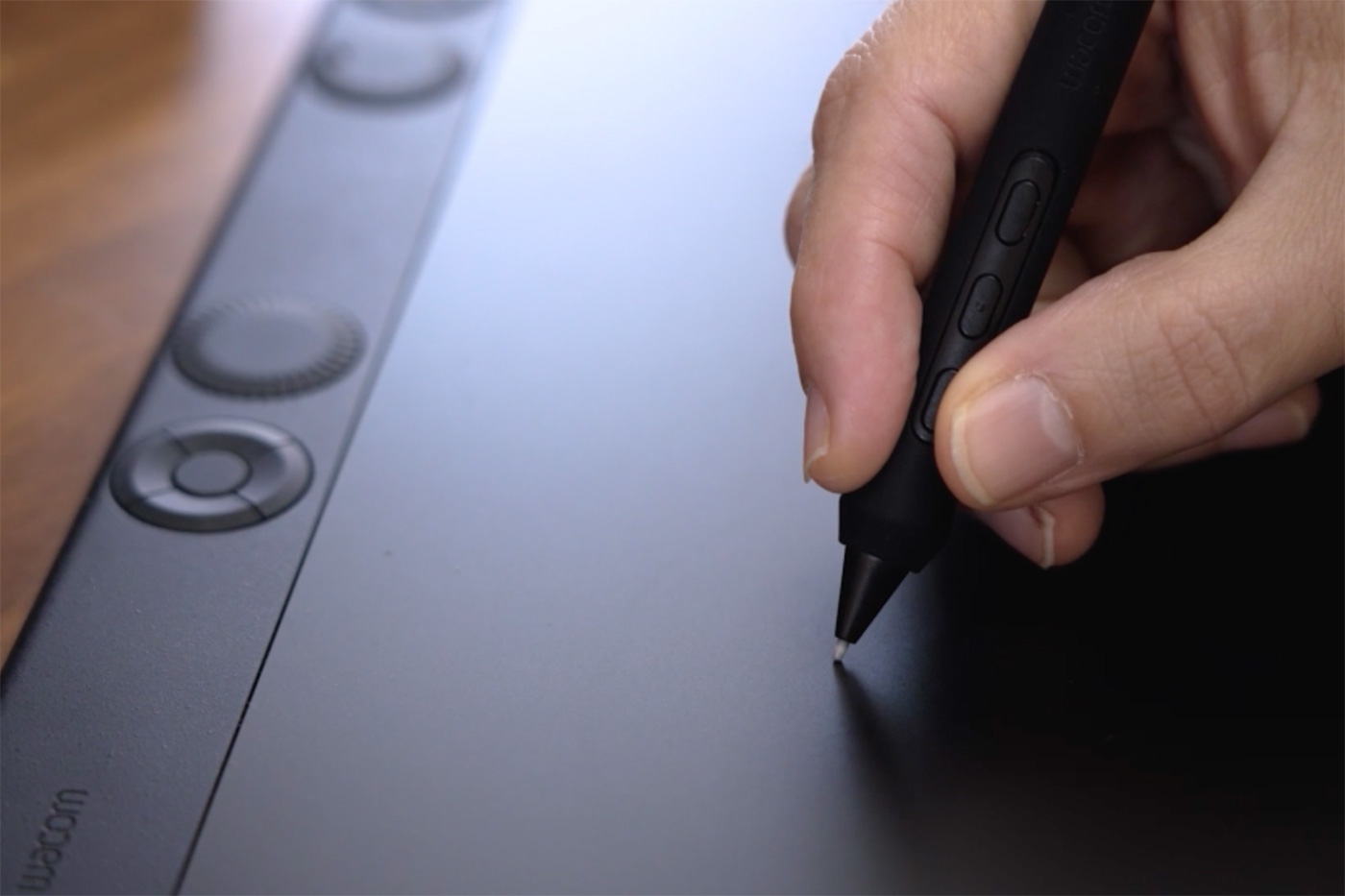
As a newcomer I opted for the defaults with wireless connectivity. The Pro Pen 3 was instantly recognised, and was so sensitive that gestures are picked up even when the nib isn't actually touching the textured drawing surface.
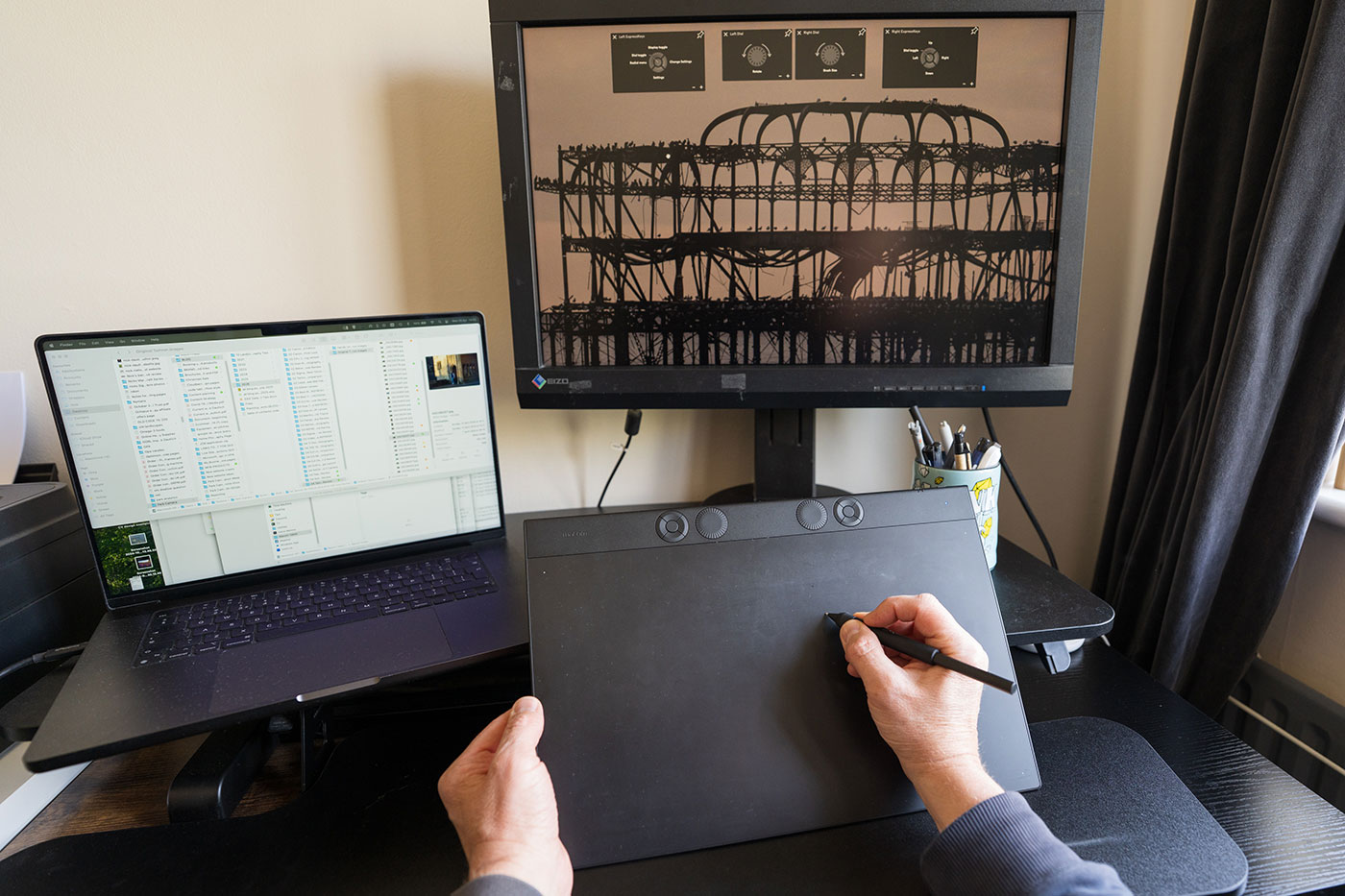
Initially I tried using the tablet for general computer tasks such as opening apps, before firing up Photoshop to see how it handles for editing. This is of course where the tablet is designed to excel, and where you may want to reassign the default ExpressKeys to things like the space bar, zoom, and undo. As standard these are set to device functions like the display toggle and radial menu, which aren't especially easy to reach with your non-drawing hand. You can keep visual menus on screen as pictured, but they take up quite a lot of screen real estate, so I'd recommend memorising the functions as soon as possible.
Generally, the tablet is intended to be used alongside existing keyboard shortcuts, and I made the mistake of opting for the largest tablet without considering that you need desk space for a keyboard within easy reach. I rely on a separate keyboard rather than my MacBook Pro's, and there wasn't enough room for both on my desk, resulting in an awkward setup due to the height adjustable sit stand workstation. Make sure you choose the right size for your workspace.
Once editing, it did become more intuitive to use the pro drawing tablet, though after decades of using a mouse I'd estimate needing a good couple of weeks to fully transition and maintain my usual working pace.
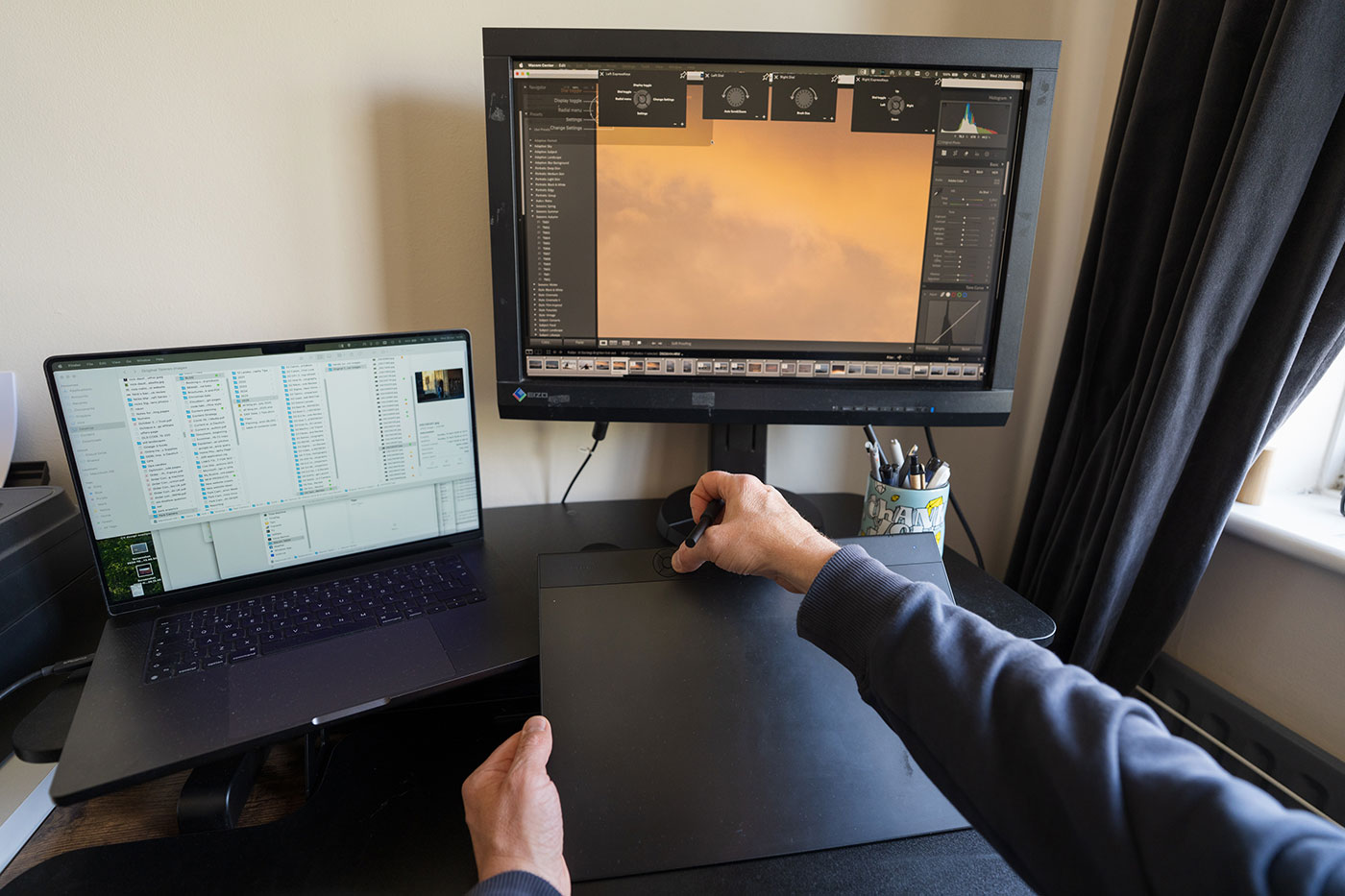
I didn't end up using any of the gestures although they span useful actions like navigation, mouse clicks, scrolling, zooming, and rotating, and I imagine they would be very handy once activated. Where the benefits of this workflow really showed themselves within a short space of time was while brushing and creating masks, which can prove tricky with a mouse. As long as you stay within the drawing area it works very smoothly, and the slightly textured tablet surface provides excellent feedback while tracking the pen extremely accurately.
I could see this as being the definitive way to work if you spend a lot of time in professional photo apps, retouch frequently, or if drawing is a regular part of your workflow. My own is quite limited as mentioned, and grabbing sliders actually proves quite difficult when using a pen versus a mouse, which is where gestures would come in. I also found myself having to reposition my hand quite frequently, which may be due to my inexperience or the large size of the working area, although adjusting the sensitivity settings or tablet position may help here, and is worth experimenting with. Conveniently the tablet can be rotated to any orientation, but I think the medium size may have been more suitable for my needs, with the large reserved for bigger workspaces and more experienced users.
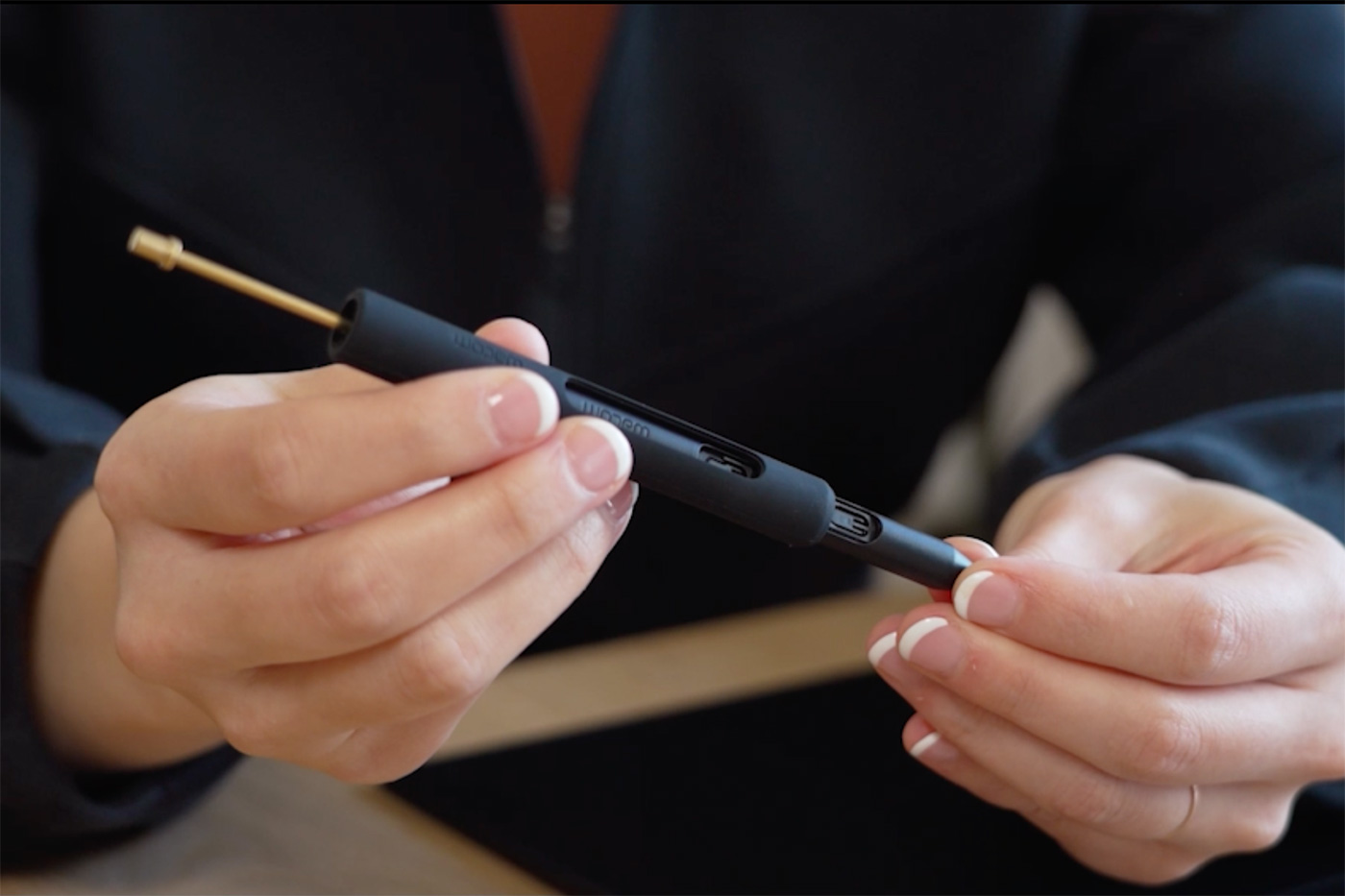
How is Pro Pen 3 Like in use?
The pen was comfortable to hold, but it's worth noting that the "natural pen feel" does depend on your background. For those who regularly write by hand, picking up the pen will feel instinctive, but anyone more accustomed to trackpads or mice may find the adjustment more significant than anticipated.
Once you're working with the pen, you can easily see where accurate pressure sensitivity would make a big difference, such as while masking, painting, brushing effects and saturation, and many other uses.
It is as customisable as the tablet, with user-adjustable grip, weight, and buttons, so you can set it up and swap parts to suit each project, or even switch between other compatible pens that you might have.
Having only used the tablet for a relatively short period, I still found myself instinctively reaching for a mouse and keyboard. After decades of editing that way, changing habits takes time. However, when it came to masking and other precision-based tasks, the advantages of using a pen became obvious surprisingly quickly.
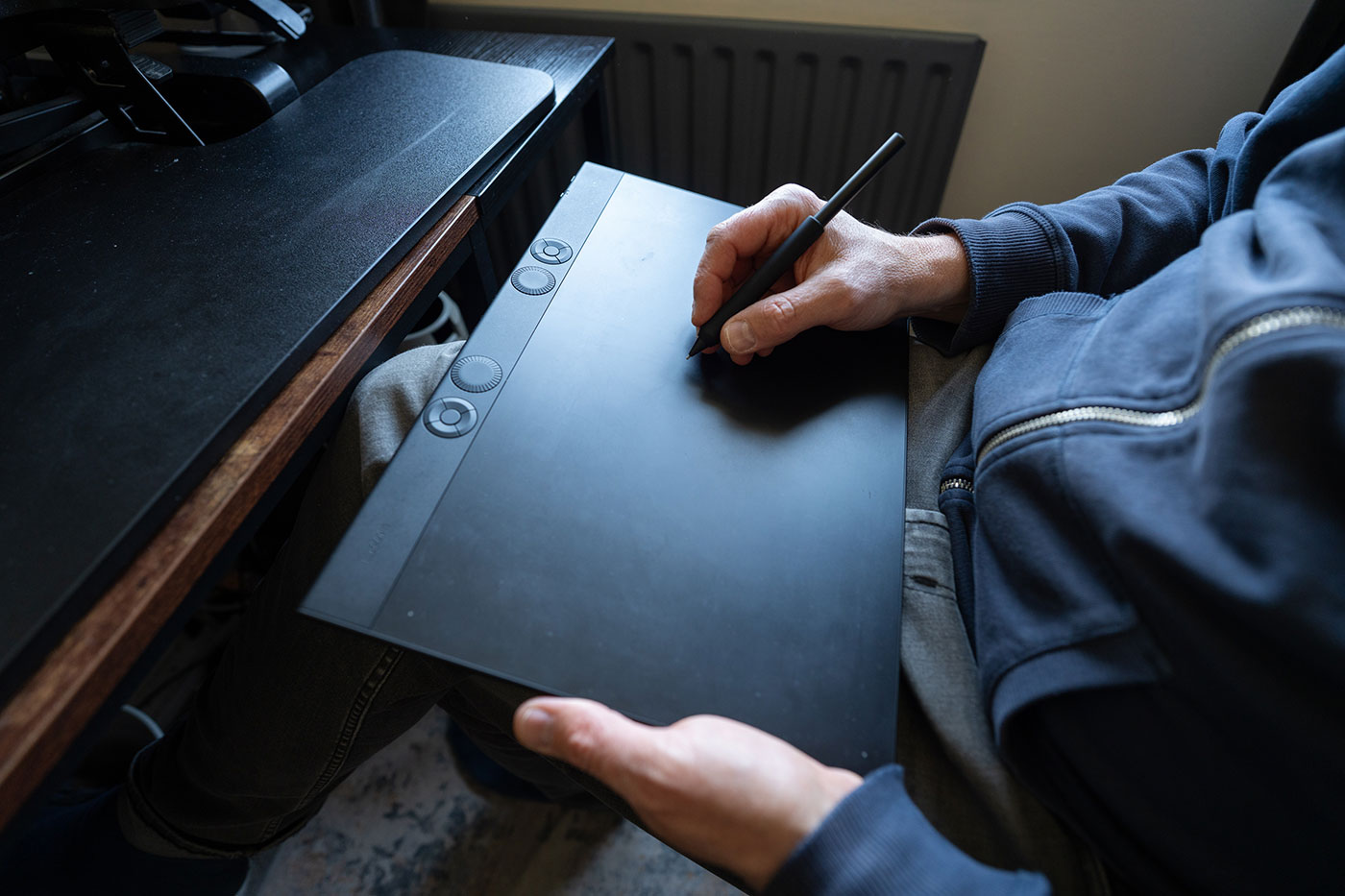
If you edit, colourise, retouch and generally spend a lot of time making detailed adjustments, a drawing tablet should significantly enhance your workflow. It is easy to set up, highly customisable and provides a very accurate way of working.
For my personal Lightroom-heavy workflow I’d need more time before replacing a mouse entirely, but for masking and repeated adjustments the benefits became clear very quickly. Just make sure you choose the appropriate size for your desk space and allow time to develop new muscle memory while finding the layout and settings that work best for you.
Learn more and reserve your Wacom Intuos Pro medium, Wacom Intuos Pro large or small here, and discover a new time-saving way of editing your images.
Share this post:
By Nick Dautlich on 02/06/2026

Nick Dautlich
Senior Content Writer and Product Reviewer
Nick Dautlich is the Senior Content Writer and Product Reviewer at Park Cameras, with over 15 years of photography experience. A Sony Imaging Professional and expert reviewer, Nick has worked with major brands such as Canon, Sony and Nikon. His work is also featured on Vanguard World UK’s website, Capture Landscapes, and Shutter Evolve. Nick’s photography includes National Trust projects and magazine covers and he is passionate about landscapes and storytelling. Nick also enjoys hiking and teaching his children about nature. Learn more on his profile page.
Trade in your old equipment
Fast and easy trade in service ensures your old gear is collected efficiently and you are paid quickly! It's very simple to trade in your unwanted photography gear. Just head over to our dedicated Sell or Part Exchange page, fill out the details, and we'll get back to you with an offer for your old gear. Take the cash, or put it towards the cost of your new gear. It's up to you! Find out more
sign up to the newsletter
Keep up to date on the latest photography news, events and offers. Sign up now